
Manage Your User Profile
Your Zeta Login User Profile contains important information about your Zeta Global account, including your name, email address, and image. These User Profile settings apply to your Zeta Login account; different Zeta Global applications may have local user settings that apply only to that application.
From within the Zeta Login User Workspace, you can edit your User Profile to ensure that it is accurate and up-to-date.
Note: This feature is available for all Roles.
Edit User Profile
To manage your User Profile:
-
Log into the Zeta Login User Workspace. The Profile tab is selected by default.
-
In the Personal Info section, make any necessary changes to your personal information.
-
Optionally, to upload a profile picture, click Upload within the Profile Image area. Navigate to and select the desired image, then click Open. Optionally adjust the image to crop or center it, then click OK. Note: the platform supports .jpg, jpeg, and .png files.
-
Click Save.
Change Email Address
Within the Personal Info section, the Email field is disabled from editing. If you need to change your email address:
-
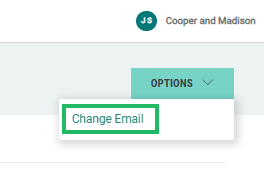
Within the header bar, select Options > Change Email . A confirmation dialog box is displayed; click Yes.
-
The Change Email pop-up window is displayed. Enter your new email address and your current password.
-
Click Change Email. A success message is displayed, click OK.
-
The platform sends an email message to your old email address, informing you that this old email address will no longer be used once the new email address has been confirmed.
-
The platform sends an email message to your new email address, asking you to confirm the change of email address. Within this message, click Confirm. The platform displays the User Workspace login window. You must log in using the new email address.
-
The platform sends an email message to your old email address, confirming that this old email address will no longer be used.
